The TryCatch activity can be used to handle errors when an exception occurs within a workflow.
To add the TryCatch activity to a workflow:
-
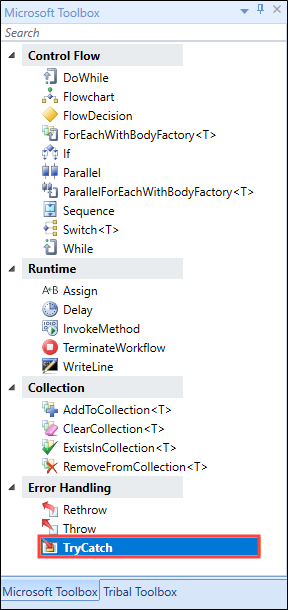
Select the Microsoft Toolbox tab in the Activity section of Workflow Builder .
-
Select TryCatch from the Error Handling section.
-
Drag and drop the TryCatch activity into the desired location within the Sequence panel.
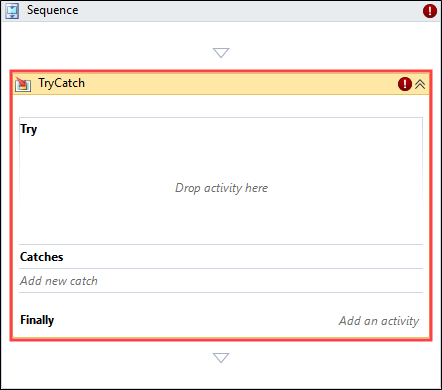
This activity contains the following properties:
-
DisplayName - the title of the activity
Important.The DisplayName property is set to TryCatch by default.
- Try - the activity that you want to execute when the TryCatch activity is executed
- Catches - the catch element to check if the Try activity throws an exception
-
Finally - the activity that you want to execute on completion of the Try and Catches activities
-
-
Drag the drop the desired activities into the Try section of the TryCatch activity.
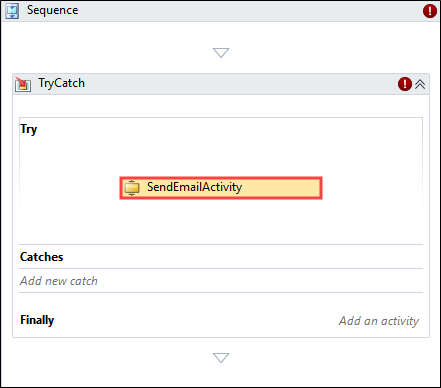
- Edit the properties of the included activity accordingly.
-
Select from the Exception drop-down field. The following exceptions are available:
- System.ArgumentException - alerts you to a problem within an argument
- System.NullReferenceException - occurs when there is an attempt to dereference a null object reference
- System.IO.IOException - alerts you when an I/O (input/output) error occurs
- System.InvalidOperationException - advises of an invalid method call that is not caused by an invalid argument
-
System.Exception - the base class for all other exceptions, used to advise of all errors
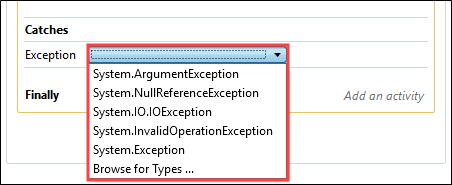
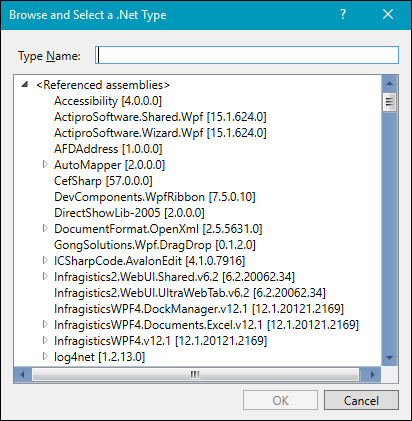
Alternatively, select Browse for Types to display the Browse and Select a .Net Type window.
 Important.Multiple catches can be added to the TryCatch activity.
 - Select an exception, then select Ok .
-
Drag the drop the desired activity into the Finally section.
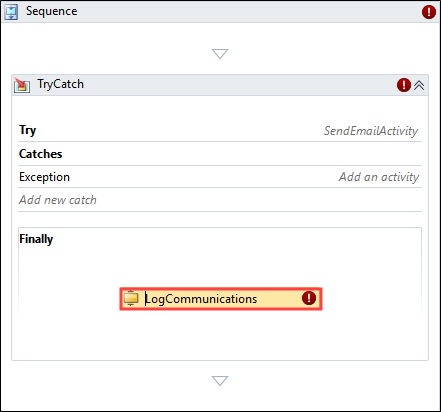
- Edit the properties of the included activity as required.
- Select Save .